Documentation
Please note that WHO DIS is currently only verified for Foundry VVT version 13.
Installation
Installing this module is follows the same process as installing any Fuligin Heart module:
- Visit https://fuliginheart.dev
- Click the "Login with Patreon" button in the upper right.
- On you Dashboard, copy your custom manifest link.
- Open Foundry and navigate to "Add-on Modules"
- Click the "Install Module" button to open the Install Module panel.
- Paste your custom manifest link in to the Manifest URL input at the bottom of the panel.
- Click the "Install" button.
Getting Started
Module Options
WHO DIS? is a relatively simple module and there are very few settings to be concerned with. That said, below are the details of those settings which are available.
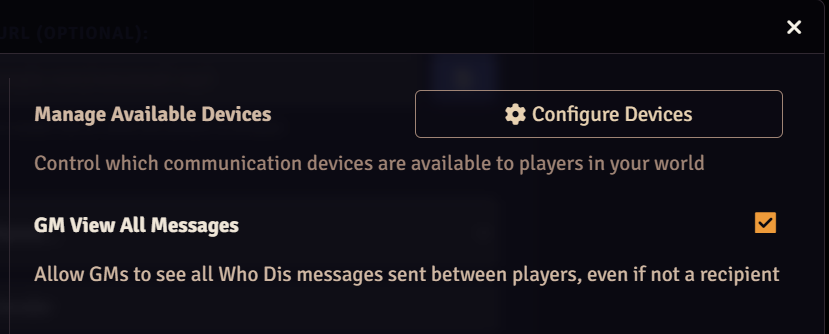
Manage Available Devices
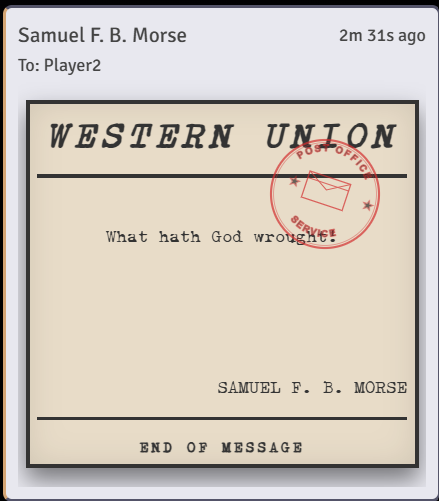
A good first step as GM is to limit which devices are available to your players. Often, this decision is very straight-forward: if your game is set in the Victorian Era, the Telegram would be the only option that makes sense. Likewise, special agents in 2002 would have little use for a telegram. Or would they? Whatever you decide, you can enable and disable devices in the module settings.
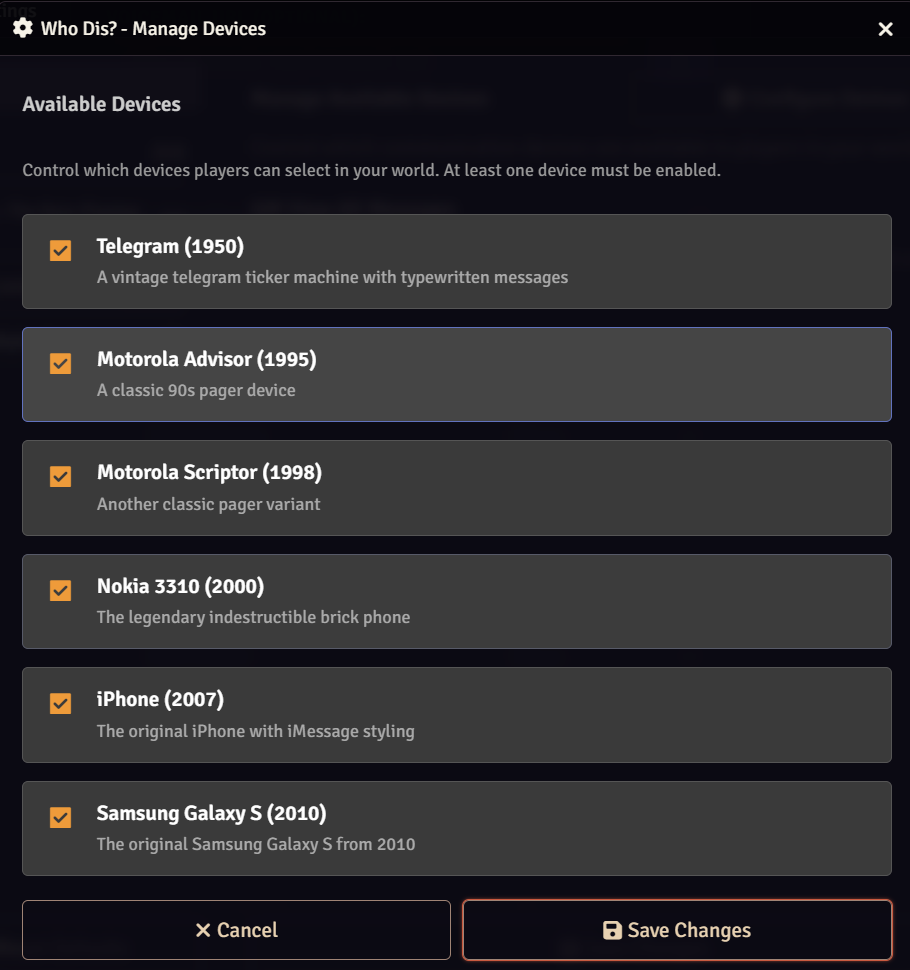
GM View All Messages
It's right there on the tin- WHO DIS? does what it does by making use of Foundry's whispers. Normally, whispers are only visible to those involved. Some GMs may wish to see all WHO DIS? messages regardless of whether or not they were meant to. Sneaky GMs.
Finding and Opening the Message Panel
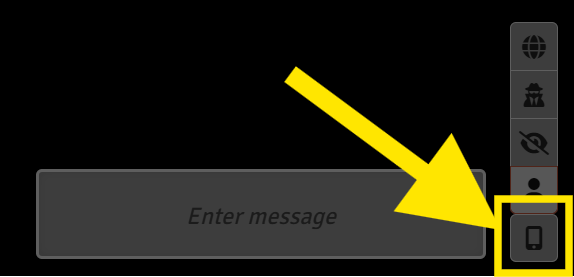
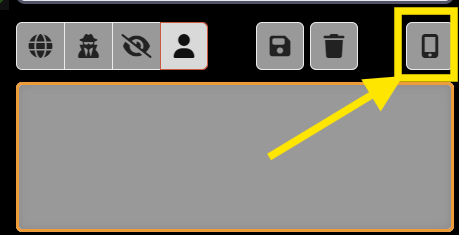
Opening the Message Panel is accomplished by clicking on the smartphone icon in the lower right of the Foundry window. The exact location of this button is determined by the state of your chat panel.
|
|
Using WHO DIS?
The Message Panel
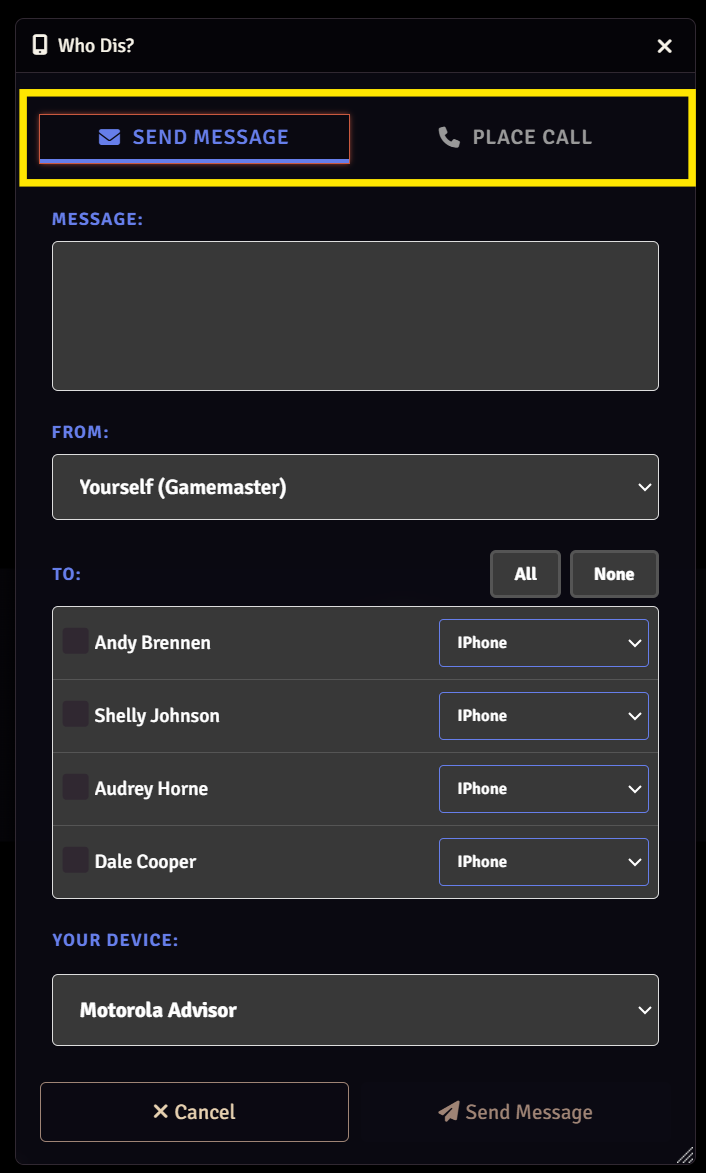
The message panel is the core of WHO DIS? Almost all functionality for both GMs and Players is initiated and handled from here. At the top of the panel are two buttons that allow the choice of which type of action will be taken: Send Message or Place Call. Each of these options have different slightly different features and not every device is capable of performing each function.
Sending a message to one or more players begins with adding the message you wish to send into the text area labeled "MESSAGE:". The text you add were is what will appear in the main content area on the device(s) of the recipient(s). Be mindful of the target devices when entering your message; not all will handle large or long messages, although most will simulate scroll in case of overflow.
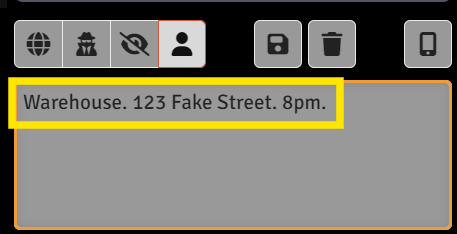
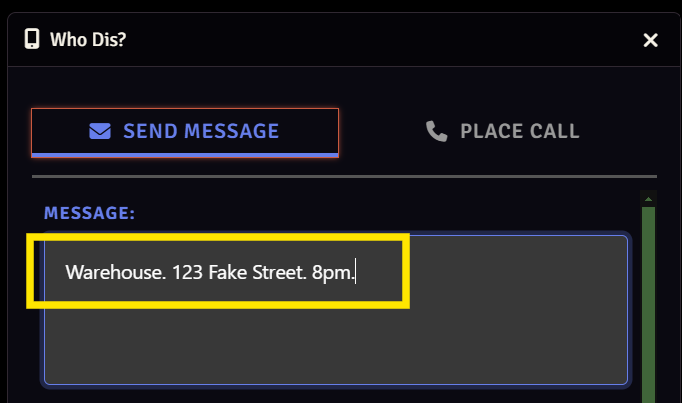
Pro Tip: If you already have a message entered in the chat window when you open the message panel, that message will be carried in to the message panel and prepopulate the MESSAGE text area.
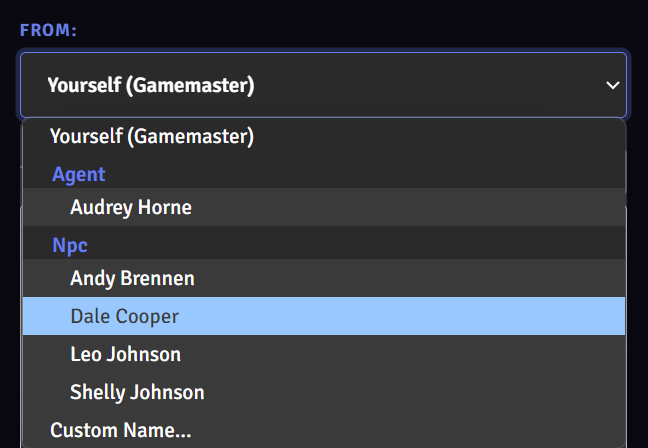
Choosing a Sender
You can choose to send a message or place a call from any Actor in your world. PCs, NPCs, Vehicles- any Actor can be selected as the sender. Not only that. If you need to send a message for a one-off character or even an "Unknown Caller", you can use the Custom Name... option and specify whatever you want. Imagine what might happen to that PCs sanity when they receive a text from their childhood dog.
Choosing Recipient(s)
The list of available recipients populated under the TO: label is populated by players with an actor assigned to them. Checking the box net to a name will mark that character as a recipient of the sent message or call. The value displays is the name of the actor. GMs and players can choose one, many, or all to send to.
Selection of certain devices will cause other devices may cause other fields to display. A notable example of this is the Telegram device.
Currently Available Devices
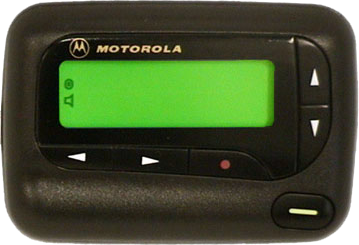
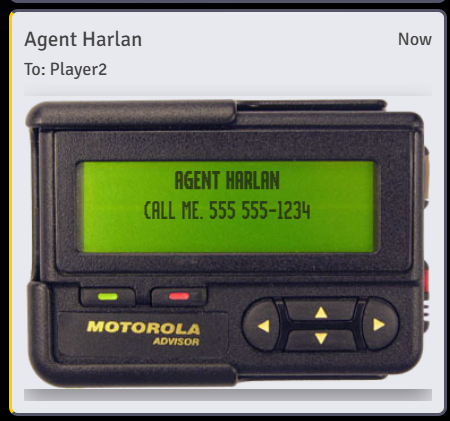
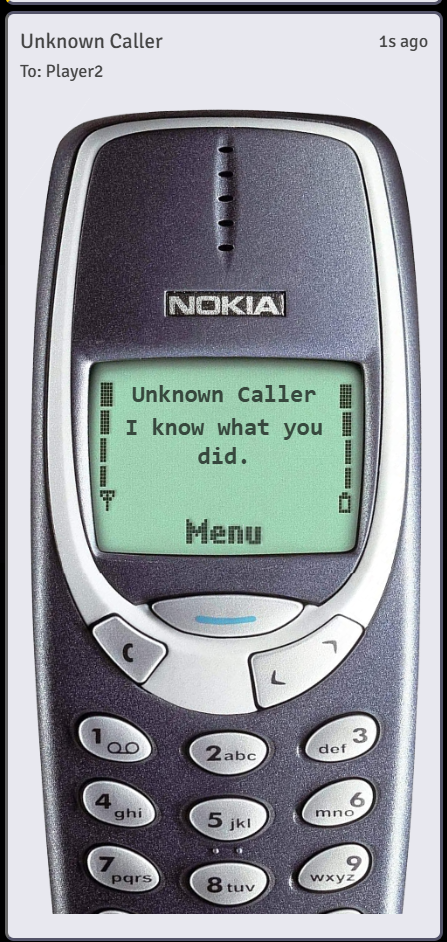
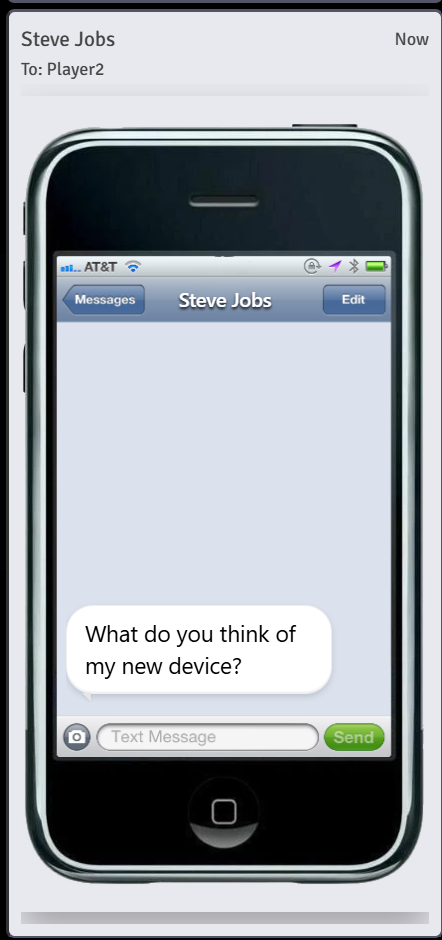
Below you will find image examples of all devices currently available for use within WHO DIS?. More are in the works and I will continue to add as the module matures. I have grouped them by category.
Real World Devices
These are devices that make sense for "real-world" settings such as those presented by games like Delta Green and Call of Cthulhu.
Telegram
Motorola Scriptor
Motorola Advisor
Nokia 3310
iPhone
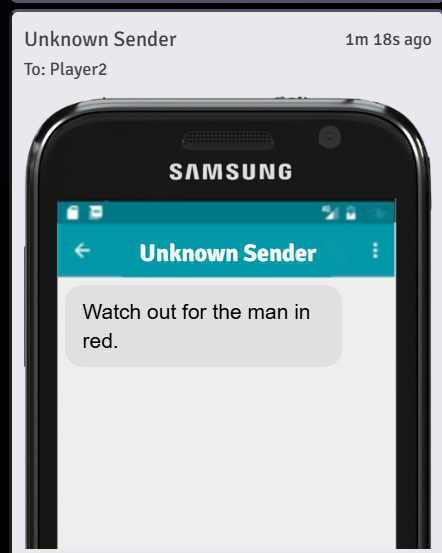
Samsung Galaxy S