
R.A.T.S. Documentation
R.A.T.S. is in active development and this is a living document. Not all information or screenshots may accurately represent the current state of the module.
Introduction
What is R.A.T.S.?
R.A.T.S. - Root Access Terminal and Shell is a Foundry VTT module that allows GMs to design and Players to experience retro-style terminal simulations. It is modular, employing what I call Elements strung together to form what I call Screens. See below for more detail.
Think of R.A.T.S. sort of like one of those new fangled Website Builders that forced old web developers like me to change career paths and start developing modules for Foundry VTT. you could use it to build a simple landing and information page. You could use it to simulate a small local network of computers. You could use it to build a worldwide system of interconnected terminals. You could use it. You could.
Questions or Concerns
For answers to common questions about R.A.T.S. please see the FAQ.
To report issues or suggestions please use the form at my website.
Installation
- Visit My Patreon Page to purchase individual modules or to join a Support Tier that includes the module(s) you want.
- Head to https://fuliginheart.dev and use the Login with Patreon button to access any entitlements you have with me.
- Add your custom manifest link to your Foundry installation.
Accessing R.A.T.S.

After enabling R.A.T.S. in Foundry, you can access the Terminal Builder by clicking the new button that you will see at the bottom of your left hand Scene Controls in Foundry. It looks appropriately like a terminal prompt and cursor.
The Terminal Builder
Here is where you will create and manage all of your Terminals. The Terminal Builder has a Card View and a List View as well as a search function to assist GMs who make heavy use of the module and need a quick way to narrow down a large amount of Terminals.
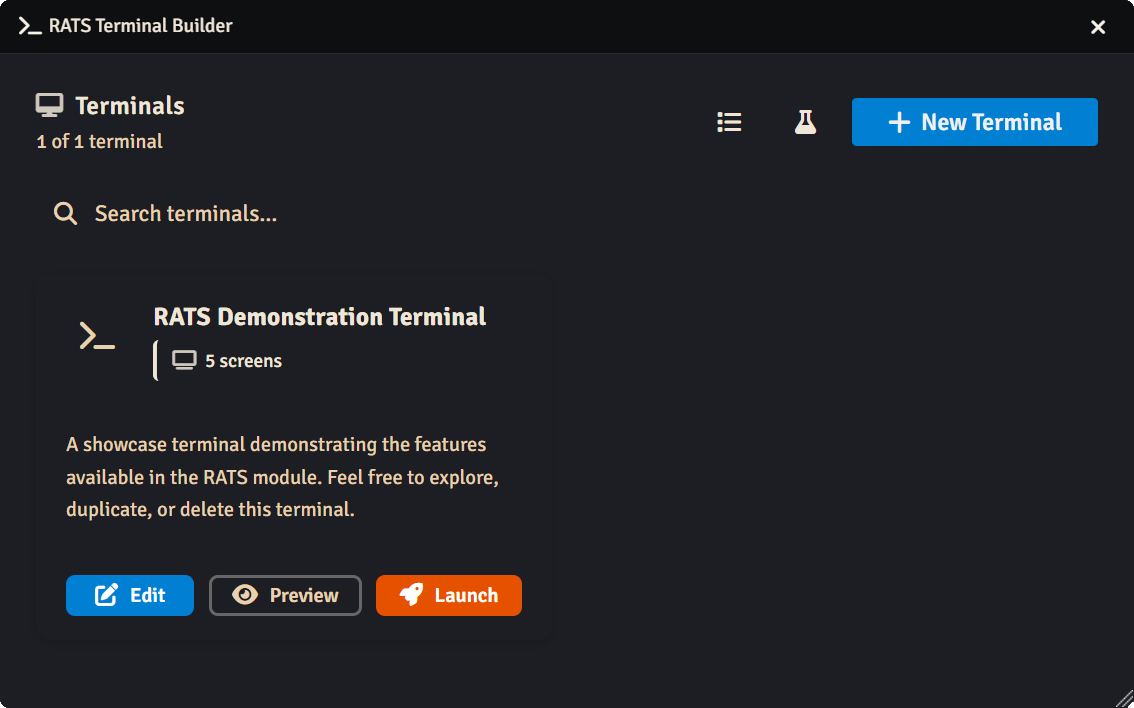 The R.A.T.S. Demonstration Terminal
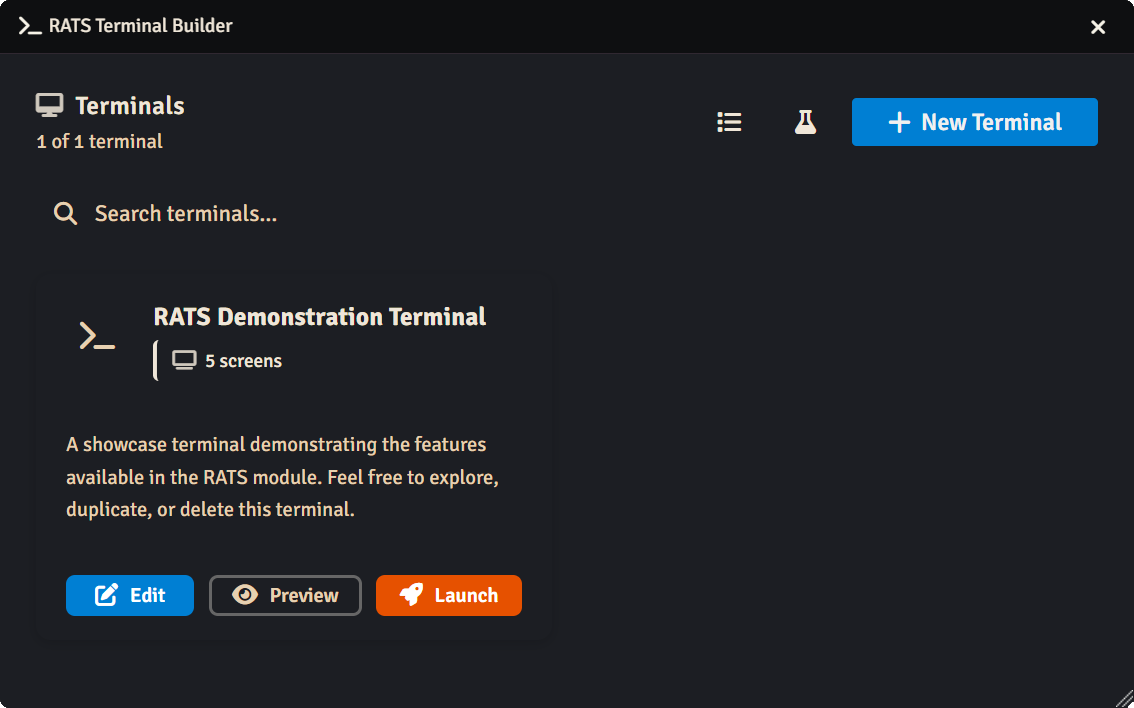
The module installs with a Demonstration Terminal meant to help you get familiarized with all of the currently released Modules and see some examples of how they can be configured and arranged to interact. Experienced users can delete this Terminal and it can be recreated at any time by clicking the Font Awesome Beaker icon in the upper right of the Terminal Builder - Terminal List window.
Terminals
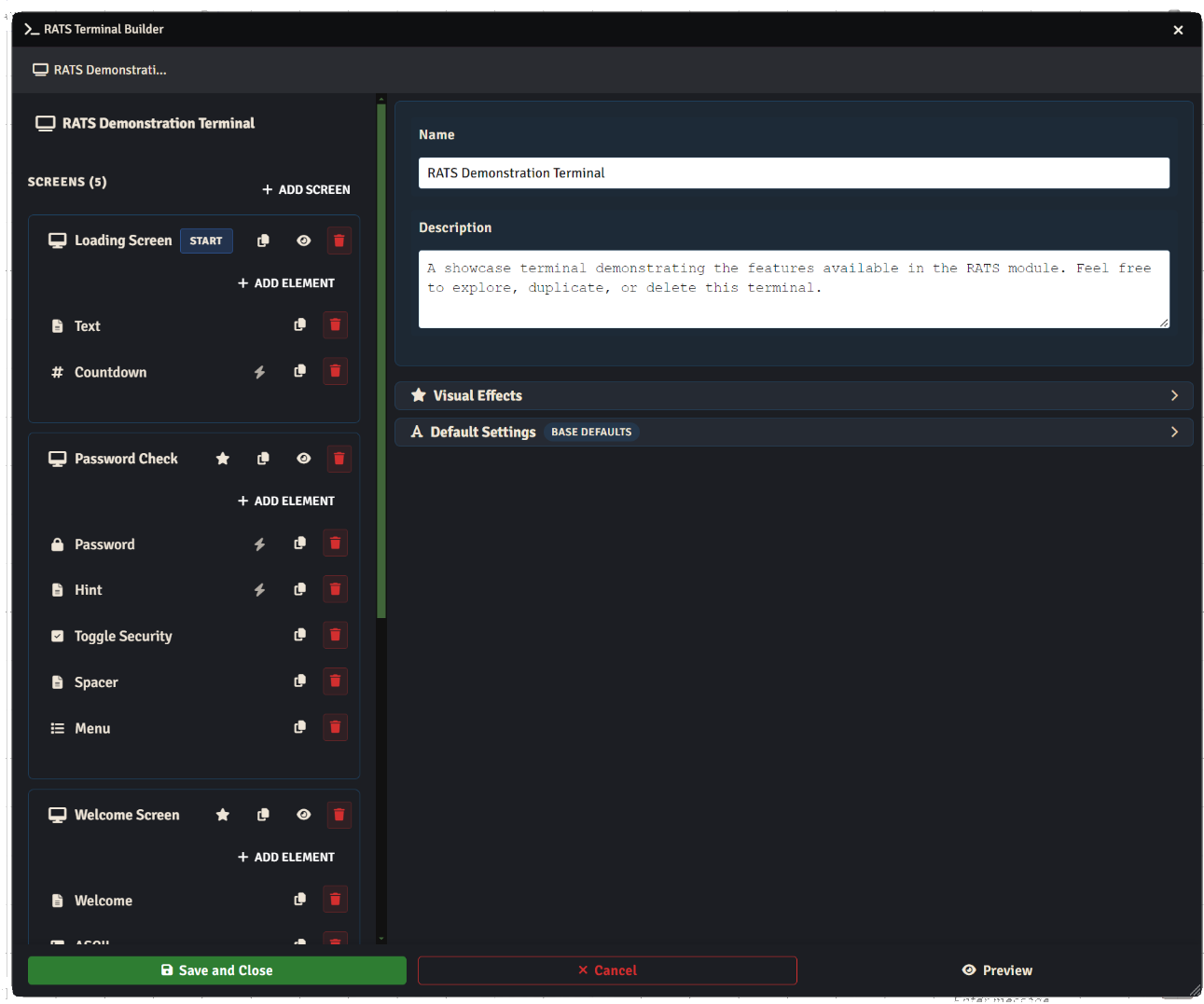
In the world of R.A.T.S., a Terminal is a collection of one or more Screens and Elements. The arrangement of these components can take many forms- Terminals can be extremely complex, interlinked applications or single-screen static informational readouts. You can often tell how complex a Terminal is simply by looking at the Terminal Tree.
The Terminal Tree
The Terminal Tree is where you can define and organize the Screens and Elements that make up you Terminals. The Tree will contain one or more Screens. Each Screen will contain one or more Elements. Each Element will contain the content you provide.
TERMINAL >> SCREEN >> ELEMENT >> CONTENT
Screens
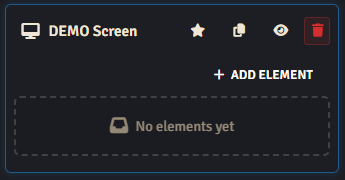
Think of Screens as individual displays within your Terminal. Each screen can hold any number of Elements. Screens are often used as targets for elements which have Actions. Screens can be rearrange within the Tree by dragging them via their name.
Iconography
taken from left to right, the various symbols at the top of a screen mean:
 This is the current Start Screen for this Terminal. This is the Screen that will load first when previewing or launching the Terminal.
 Set as Start - Use this icon to set this Screen as the start Screen for this Terminal.
 Duplicate - Pressing this will duplicate this Screen and all of its Elements as a new Screen in the Terminal Tree.
 Preview - You can preview just this Screen by pressing this button. This helps speed up development for more complex Terminals.
 Delete - Remove this Screen and all of its Elements from the Tree. A confirmation is provided.
Adding Elements
You can add Elements to a Screen by clicking the +ADD ELEMENT button at the top of that Screen's representation in the Tree. You can also add elements to a Screen by dragging them in from another Screen.
Elements
Elements are the smallest unit in the R.A.T.Sverse and represent a little bundle of functionality that GMs can use to build out screens which can then be linked together in fun and exciting ways.
Iconography
You may see one or more icons next to an Element indicating some properties or conditions set in the Element.
 Completion Actions Present - If you see this icon next to an Element it means that that Element is set to perform an Action when the Element completes rendering. If this icon is followed by a number, it represents the configured delay timer before the action will be performed.
 Start Invisible - An Element with this icon means that it is set to start hidden.
 Animated - This icon indicated that this Element is set to render it's contents over time.
 Style Override - The palette icon means that some default Terminal or Screen style is being overridden on this Element.
Option Buttons
Also next to every element are some buttons to perform common options.
Duplicate - Pressing this will duplicate this Element along with all of its configuration.
Delete - Remove this Element from the Tree. A confirmation is provided.
Text
ASCII
Menu
Password
Action
Count
Search
The Search Element is very powerful and can even be used as a central device to add interactivity and immersion to your campaign.
Ideas for use: Criminal Database, Public Library Information Kiosk, Derelict Ice Miner Crew Records
Terminal Viewer
FAQ
What does the acronym R.A.T.S. even stand for?
Root Access Terminal and Shell. If you're an old nerd like me, that's the kind of thing you name your modules.