
MURDER BOARD Documentation
This is a Living Document and will change as MURDER BOARD is further developed and modified. Images and other media here may appear out of date but I will try to keep as current as possible.
MURDER BOARD is currently only tested and verified to work on Foundry v13
Getting Started
Installation
Installing this module is follows the same process as installing any Fuligin Heart module:
- Visit https://fuliginheart.dev
- Click the "Login with Patreon" button in the upper right.
- On you Dashboard, copy your custom manifest link.
- Open Foundry and navigate to "Add-on Modules"
- Click the "Install Module" button to open the Install Module panel.
- Paste your custom manifest link in to the Manifest URL input at the bottom of the panel.
- Click the "Install" button.
Accessing
 In order to access the Murder Board Interface, you must first enable it like any other module. Then, you should see a new, distinctly clipboard-shaped icon somewhere near the bottom of the left-side button bar in your Foundry UI. Clicking this icon will open the Murder Board Canvas.
FeaturesUsing Murder Board
The Interface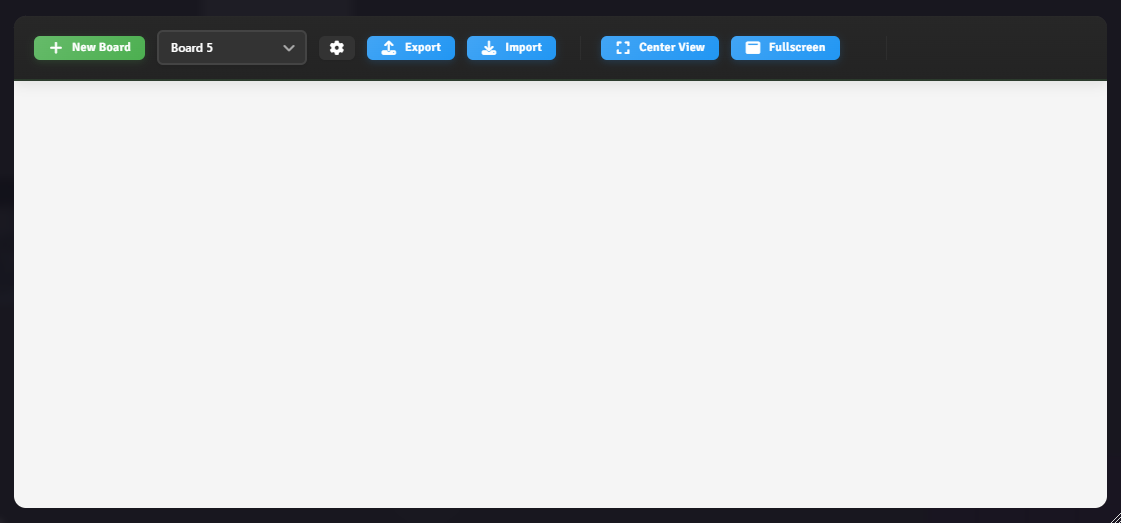
The interface overall is quite spartan- a few self-explanatory buttons and a blank canvas. Even so, I'll explain.
Buttons and Things
New Board
Clicking this will immediately generate a new board with all of the default settings. The initial name will be auto-generated but can be modified, along with all other board-related settings, in Board Settings by clicking on the Gear Icon to the right of the Board Select Dropdown.
Board Select Dropdown
What good are Murder Boards if you have no way to access the, right? My thoughts exactly. Which is why I invented this new form element called a dropdown. I bet you'll soon be seeing them all across the Internet. All of the Boards you create will populate here by name.
Board Settings
Click the little gear icon  next to what you now know is called a dropdown to access Board Settings. This is where you can begin to set yourself up for success when using Murder Board. Here you will find all of the settings that are specific to a Board. Each Board has it's own unique settings which allows you some freedom in working how you want if you run more than one game or if everyone wants their own .
Import and Export
You can use these to make quick JSON "backups" or even copies of your boards. Foundry's file system is sort of immutable by design so your file paths can't really change unless you self-host and get in there and tinker with them.
Center View
Technically speaking, Boards do have a center point. You and your players can find it by clicking this button. This was far more useful in early versions of the module when I was calculating the canvas based on Scenes. Felt cute at the time. Might delete.
Fullscreen
This does exactly what it says it's gonna do. No, it does not- I wouldn't dare take up your full screen, but I will make the MB window as big as I can within your Foundry window.
PROTIP: MURDER BOARD remembers the size, location, pan, and zoom level of each Interface locally on your client. When you close the Interface or reload Foundry and open MB again it'll be right where you left it. Your friend, Greggg, will have a similar experience only he likes his window a little bit smaller.
Boards

 Boards are the foundation of MB. In order to add images, notes, text or anything else, you must first create a board. You can have multiple boards with their own unique configurations and set of items. Players can also view any boards they have access to independently of you and of each other.
By default a board is first created with a blank background image and nothing on it. The Center View button will center your canvas view on the center and Fullscreen makes the canvas into Fullscreen. The JSON of a board of your choosing, allowing you to share or receive others' boards.
If you wish to configure the scale, background image, and default settings of a board, you can access board settings for the currently active board by clicking the gear icon in the Toolbar.

In boardBoard settings,Settings you can:
- Change the Board's Name.
- Change the default canvas color. This will appear by default when there is no custom background image
active.active and also surround the background image if one is set. - Change the background image to
anythinganyofimageyouryouchoosing,like.itIt will belayeredoverlayedoveron top of your chosen canvas color and stretch to your chosen background scale. - Change the background scale, this will make the background image larger or
smaller, conversely making the canvas items smaller or larger.smaller. - Change the default Connection
color,colorasandwellthickness. - Set
asthechange"intensity" of the shadow on items which have shadow enabled. - Change the default
Connectionfontsize.and font. This applies only to newly created items and not retroactively. - Alter player's permissions to edit/view the canvas, or allow all players to edit/view the canvas.
(If you would like players to be able to add images to the board you must give them proper permissions in Foundrysettings)settings. ChangeEnabletheordefaultdisablefont"realistic"color,Connectionasstrings.wellTheastermtheisdefaultusedfontlooselysize.here.- Choose to render Connections above Items. This will make connections appear as drawn above Items, rather than the default below.
The Canvas
Right-click and drag to pan the Murder Board canvas. When you right-click the Canvas a pop-up will show allowing you to add the item of your choice. All items when uploaded then can be edited by right-clicking on them. All uploads, rotations, sizing, etc, will persist across sessions with no need for a 'save' function. Murder Board currently supports 4 types of uploads:
- Sticky Notes
- Text
- Images
- Documents
Fonts
Most of these items will have text related to them, and by default Murder Board pulls directly from Foundry and your custom fonts. All default font settings can be configured in Board Settings.
Connections
Any item can be Connected with each-other by either dragging one into the other or using Ctrl+C on the selected items. You can edit them by right-clicking the connection. Currently you can add a label to them, change their color, or change their size. Every item can be altered to accept or reject connections by the chain-link button in the bottom left of every item. Connection Labels exist as full editable text, they can be repositioned, styled, and sized just as any text item.
Items can be set to accept or reject connections. This is to aid in layering objects on top of one another without creating a connection. In order for a connection to be established, both items must be set to Accept Connections.

Resizing and Rotating
Any item on the board can be resized and rotated. Both are accessible by clicking on the item and using the red corner-arrows to resize the item, while the green circular icon above is used to rotate the item. You can also rotate items by clicking over an item and using CTRL + SCROLL-WHEEL.

Sticky Notes
Sticky Notes provided a seamless way for you to have immersive text on the board. You may:
- Change the color of the note.
- Change the text color.
- Change the font.
- Enable a drop-shadow or not.

Text
Text, unlike Sticky Notes allows you to simply place text onto the Board without any image or other item attached to it. Text items do not accept connections by default so they can easily positioned near and over other items. You may:
- Change the text color.
- Change the font.
- Enable a drop-shadow or not.

Images
Images are a versatile item that allows you to upload any kind of image you want to the board. Players can add their own images by pasting their own image URL or drag-and-dropping. Images will be automatically uploaded to a new folder called murder-board-uploads in your Foundry User Data. You may:
- Change the border color, or make it have none.
- Change the type of fastener. This will change how the image looks like it is attached to the board.
- Enable a drop-shadow or not.

Documents
Documents, similar to Sticky Notes, create a custom immersive image with a text-overlay. You may:
- Change the document text.
- Change the document type to an immersive style of your choosing.
- Alter the type of fastener.
- Change the color of the document.
- Enable a drop-shadow or not.
- Change the effect of the document. This will make it look as if the document were crumpled, torn, or burned.
- Change the document's font.

Layering
Murder Board supports a z-index similar to Foundry's default canvas. The UI for it will appear on every item on the canvas, and it allows you to layer items below or above relatively. Items in the front will display above items below, meaning higher numbers take priority. Using the arrow buttons will allow you to quickly bring items to the front or back. Make sure when layering that the items you are layering are rejecting Connections.

Hiding
Every Item on the Board is able to be hidden by the GM. This is done by clicking the Eye icon in the bottom-left of the item's edit panel. Connections to and from hidden Items are also hidden until revealed.

Locking
Every Item on the Board can be Locked by both the GM and Players. This is done by pressing the Lock icon in the bottom-left of the item's edit panel. This will prevent the Item from being rotated, moved, resized, etc.

Groups
Groups are a useful function that allows you to quickly move or alter the z-index of a chosen group of items on the canvas. In order to group a set of items you must select multiple of them and right-click the item and click 'Group'. This will then allow you to move them around together or bring them to the front or back on the z-index.
Foundry Native Element Dragging
Murder Board allows you to drag many default Foundry elements right to the canvas. You may drag Actors, Items, Journals, Journal Pages, and Scenes directly to Murder Board. These all behave in specific ways according to the type.
- Actors use the actor portrait.
- Items use the item image.
- Journals create a Document and use the Journal Title as initial text.
- Journal Text Pages create a Document and use the text of the page.
- Journal Image Pages create an Image and use the image of the page.
- Scenes create an Image and use the Image of the scene.
- Journal Page PDFs and Videos are not implemented yet.
Keyboard Shortcuts
- Ctrl+C - Create connections between selected items
- Ctrl+D - Duplicate selected items
- Ctrl+G - Toggle group/ungroup selected items
- G - Toggle group border visualization