DEFILER Documentation
This module is in active development and this is a living document. Not all information or screenshots may accurately represent the current state of the module. View the latest Changelogs for the most up-to-date information. Questions, issues, or suggestions can be submitted here.
What is DEFILER?
DEFILER is a modern tag-based file picker module for Foundry Virtual Tabletop that replaces the default hierarchical file browser with an intuitive, filtering-first interface. Rather than navigating nested folder structures, users organize and discover files through customizable tags, full-text search, and quick-access group shortcuts. DEFILER manages file metadata using IndexedDB through intelligent caching, supports tag inference from filenames, and provides a comprehensive settings system to customize the experience. Whether managing art assets, character portraits, or campaign documents, DEFILER streamlines file discovery with a modern UX designed for large media libraries.
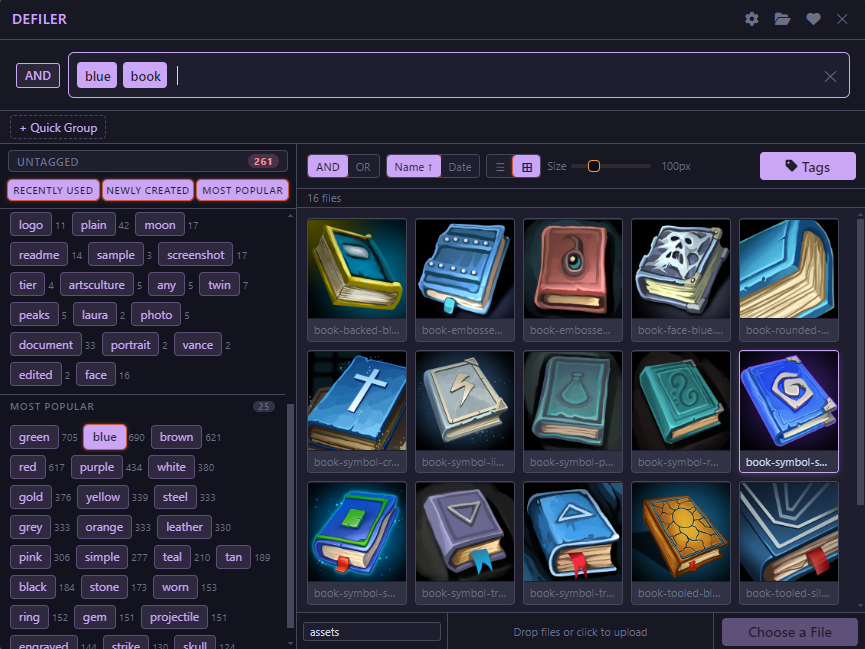
In short, my idea for DEFILER was, like has been for many of my modules, to make working in Foundry less tedious. This is even more important for GMs who rely heavily on preparation (or overpreparation) . The vanilla FilePicker is perfectly fine but DEFILER does so much more.
Installation
- Visit My Patreon Page to purchase individual modules or to join a Support Tier that includes the module(s) you want.
- Head to https://fuliginheart.dev and use the Login with Patreon button to access any entitlements you have with me.
- Add your custom manifest link to your Foundry installation.
Using DEFILER
Using DEFILER is easy. It may be completely different from what you are used to when working with files both inside and outside of Foundry but I promise you that it's easy. It may seem daunting at first, but stick with it. You may even start to consider how you work with your files outside of Foundry.
Quickstart
If you're eager to jump right in, or you think you can figure it out, here are the basics that you should know to get the most out of DEFILER.
Install DEFILER. Enable DEFILER. Open DEFILER.
Scan your files. DEFILER is all about the Tags. Until you scan, you wont have any sweet, sweet Tags so just go ahead and do it already.
If you find that you end up with a lot of Untagged Files, adjust your Scan Settings and Scan Again.
Start your new life.
Shortcuts and Hotkeys
These can be altered under the DEFILER section of Foundry's Control Settings.
Open DEFILER
CTRL + F is the default shortcut to open DEFILER. Opening DEFILER with this shortcut opens the module in Open Context Mode.
Foundry's vanilla FilePicker typically gets called with a filetype context parameter which limits what files you can see. DEFILER can be opened in what I call Open Context Mode such that you aren't filtering by file type and will see all of your files. This is the BEST way to work with DEFILER when creating your Custom Tags and organizing your files.
AND/OR Toggle
CTRL + ` or ~ is the default hotkey to toggle between OR and AND mode when searching with Tags. This is the difference between searching for files tagged Red OR Cape and searching for objects tagged Red AND Cape
Key Concepts
I told you that it was easy and I meant it. There are really only a few simple concepts to consider.
Tags
If you have spent any amount of time with computers and the Internet over the past 30 years you have undoubtedly heard, seen, or even used a tag-based system before. Tags are simply a label applied to one or more things- in our case, files. Rather than relying on folders nested one inside another, we can tag groups of items with the same tag allowing us to call them up with a simple word.
What advantages does this provide us over the traditional file and folder structure? Well, here's a solid example using some images the Core Data that is installed on every instance of foundry by default.
Example - The Quest for the Red Cape
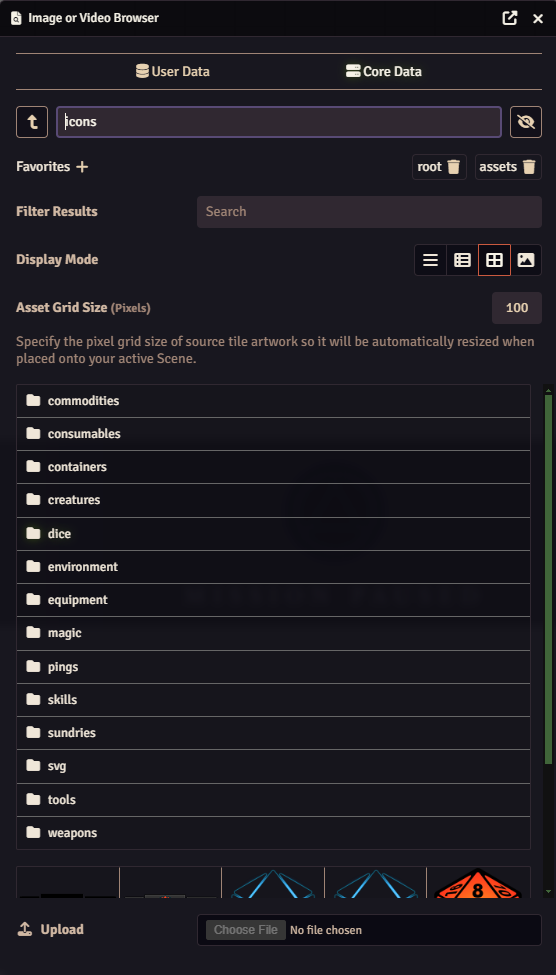
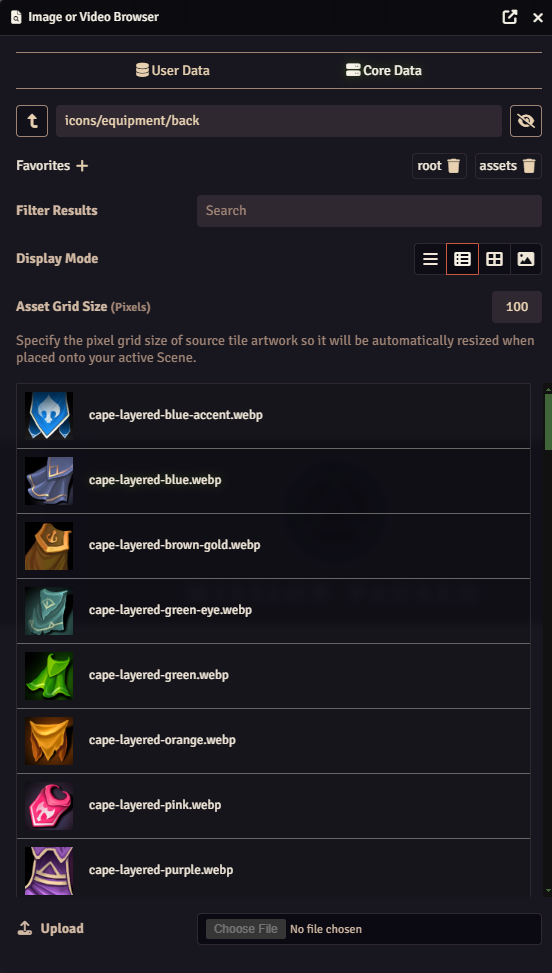
Everyone who has used Foundry will immediately recognize the 'icons' folder from Foundry's Core Data store. There are bunch of really neat images in here all with a nice uniform style. They are very well named and organized into folders. If you wanted a cool icon to put on that magical cape your players might find you could click into here, then click 'equipment', and then click 'back' to see all of the stuff you can wear on your back.
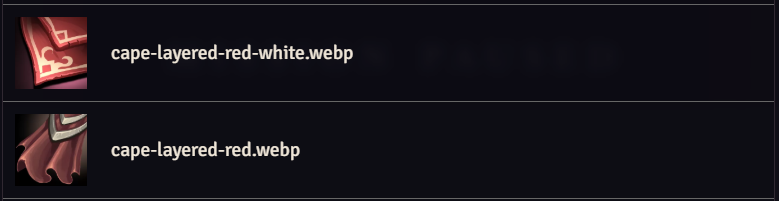
And once there you were certain that the cape should be red so you could type 'red' in to the Filter Results box and whammo, just like that you've got all the red items that can be worn on the back. But wait just a minute, these aren't all red like you asked for. Hell, most of these aren't even capes! There's a decidedly-not-red image called 'cloak-layered-pink.webp' and an even less red file called 'cloak-collared-leaves-green.webp'. What gives?
Maybe if you type 'red cape' into the Filer Results box? Nope! Now you get exactly no results even though there are several perfectly good red capes in this dumb folder.
Ok, lets just go back to using 'red' as our filter then. Why are all these other things showing up? None of them have the word 'red' in the filename- or do they? Do you see the problem yet?
Both 'cloak-collared-leaves-green.webp' and 'cloak-layered-pink.webp' contain the word 'red', just not in the way we wanted or expected. What we expected was a snazzy red cloak.
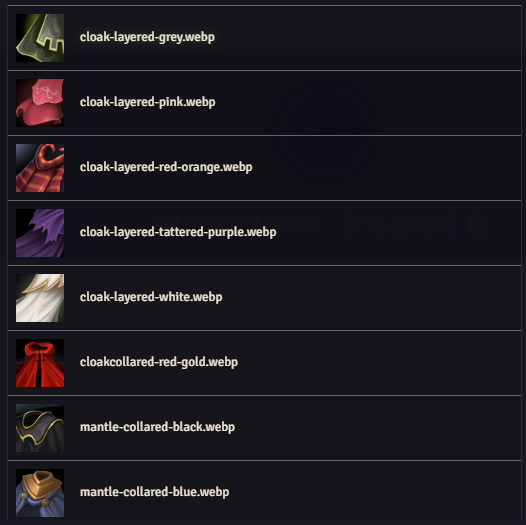
What you're seeing here is one of the major limitations of the vanilla FilePicker and the chief inspiration for me creating DEFILER. I don't know about you but when I ask for a red cape, I want a goddamned red cape.
When you type
First Open
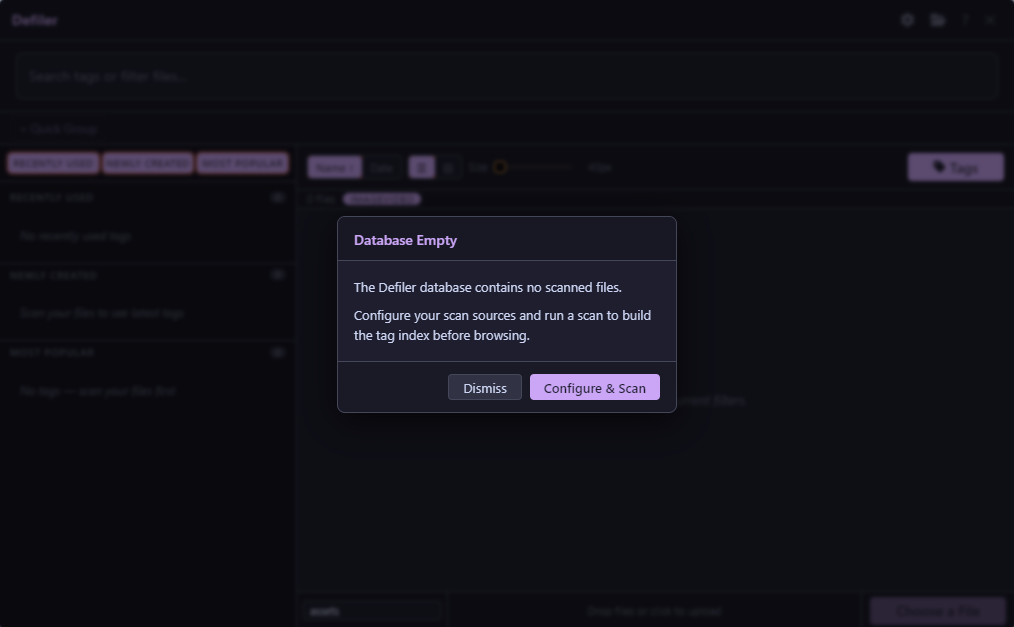
When you open the DEFILER panel for the first time- either by hotkey or through any means which would normally open the Filer Picker- you will be met with the screen shown here. DEFILER is letting you know that your Tag database is embarrassingly and that you need to initiate a scan of your files in order to remedy that. Click "Configure and Scan" to open DEFILER's settings. Once there you can set the options you want and begin scanning.
Everyone's system is different. It will be up to you to tinker with these settings to achieve a level of tagging that you are happy with. Once you settle on something that works for you, the real magic begins.
Custom Tags
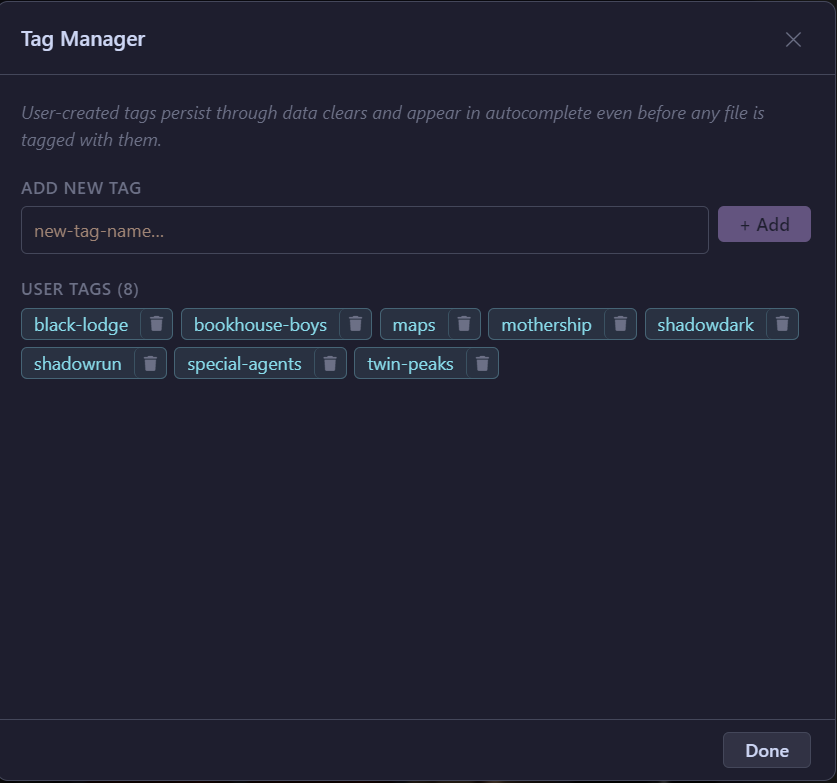
There is actually another small distinction between Scanned and Custom Tags in DEFILER: Scanned tags appear as PURPLE while your precious User-Defined Tags will show as TEAL .
To edit or create you