This module is in active development and this is a living document. Not all information or screenshots may accurately represent the current state of the module. View the latest Changelogs for the most up-to-date information. [Questions, issues, or suggestions can be submitted here.](https://fuliginheart.dev/report)
MURDER BOARD is currently only tested and verified to work on Foundry v13
## What is MURDER BOARD MURDER BOARD is a collaborative, real-time investigation tracking interface built for Foundry VTT. It gives you and your Players a shared digital workspace right within Foundry to organize notes, images, and documents—then visually connect them to reveal patterns and relationships that solve mysteries. It updates in real-time so that you and all of your players see the same things. 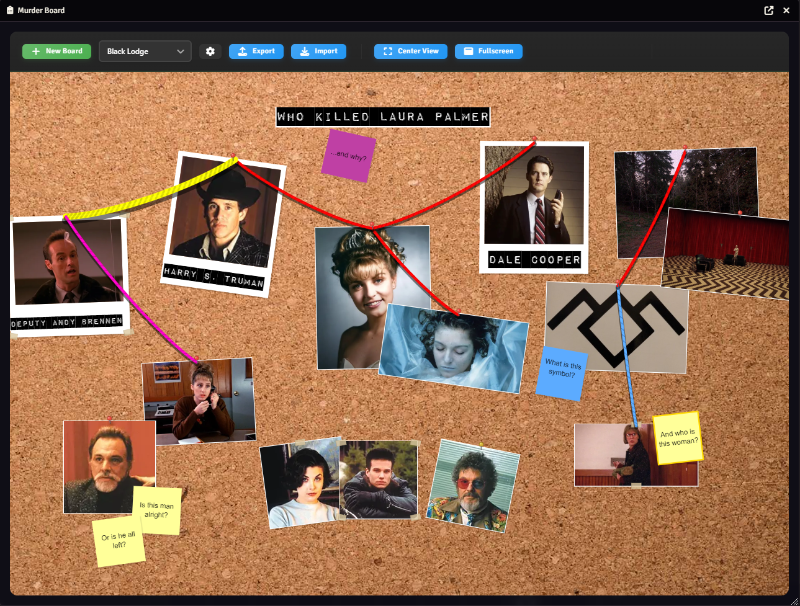## Quick Demo Video Here's a quick demonstration of me building the board in the image above. ## Installation - Visit [My Patreon Page](https://www.patreon.com/cw/FuliginHeart) to purchase individual modules or to join a Support Tier that includes the module(s) you want. - Head to [https://fuliginheart.dev](https://fuliginheart.dev) and use the **Login with Patreon** button to access any entitlements you have with me. - Add your custom manifest link to your Foundry installation. ## Accessing In order to access the Murder Board Interface, you must first enable it like any other module. Then, you should see a new, distinctly clipboard-shaped icon somewhere near the bottom of the left-side button bar in your Foundry UI. Clicking this icon will open the Murder Board Canvas. ## Using Murder Board ### The Interface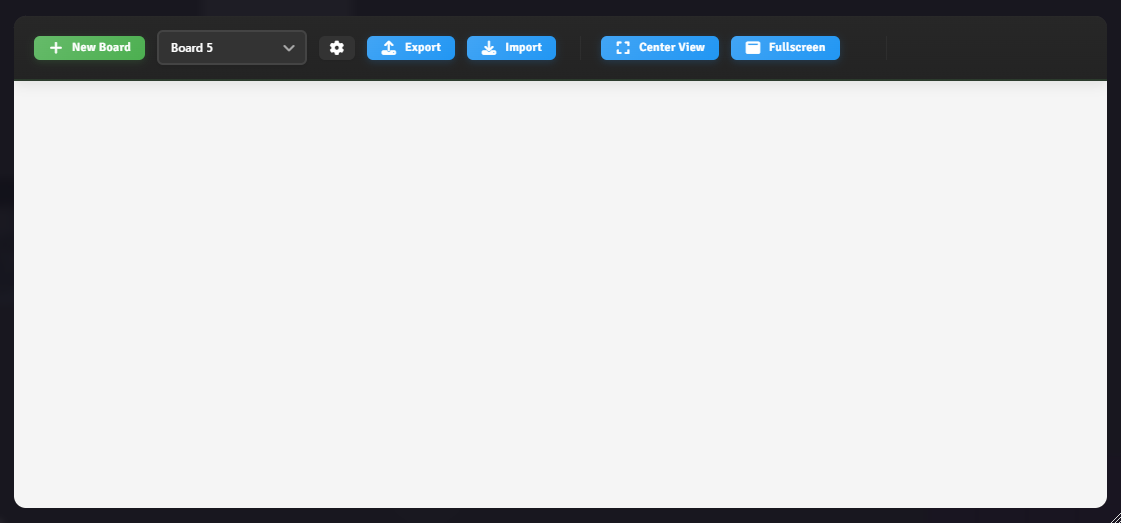 The interface overall is quite spartan- a few self-explanatory buttons and a blank canvas. Even so, I'll explain. #### Buttons and Things ##### New Board Clicking this will immediately generate a new board with all of the default settings. The initial name will be auto-generated but can be modified, along with all other board-related settings, in Board Settings by clicking on the Gear Icon to the right of the Board Select Dropdown. ##### Board Select Dropdown What good are Murder Boards if you have no way to access the, right? My thoughts exactly. Which is why I invented this new form element called a dropdown. I bet you'll soon be seeing them all across the Internet. All of the Boards you create will populate here by name. ##### Board Settings Click the little gear icon next to what you now know is called a dropdown to access Board Settings. This is where you can begin to set yourself up for success when using Murder Board. Here you will find all of the settings that are specific to a Board. Each Board has it's own unique settings which allows you some freedom in working how you want if you run more than one game or if everyone wants their own . ##### Import and Export You can use these to make quick JSON "backups" or even copies of your boards. Foundry's file system is sort of immutable by design so your file paths can't really change unless you self-host and get in there and tinker with them. ##### Center View Technically speaking, Boards do have a center point. You and your players can find it by clicking this button. This was far more useful in early versions of the module when I was calculating the canvas based on Scenes. Felt cute at the time. Might delete. ##### Fullscreen This does exactly what it says it's gonna do. No, it does not- I wouldn't dare take up your full screen, but I will make the MB window as big as I can within your Foundry window.**PROTIP:** MURDER BOARD remembers the size, location, pan, and zoom level of each Interface locally on your client. When you close the Interface or reload Foundry and open MB again it'll be right where you left it. Your friend, Greggg, will have a similar experience only he likes his window a little bit smaller.
#### Boards Boards are the foundation of MB. In order to add images, notes, text or anything else, you must first create a board. You can have multiple boards with their own unique configurations and set of items. Players can also view any boards they have access to independently of you and of each other. By default a board is first created with a blank background image and nothing on it. The Center View button will center your canvas view on the center and Fullscreen makes the canvas into Fullscreen. The JSON of a board of your choosing, allowing you to share or receive others' boards. If you wish to configure the scale, background image, and default settings of a board, you can access board settings for the currently active board by clicking the gear icon in the Toolbar. 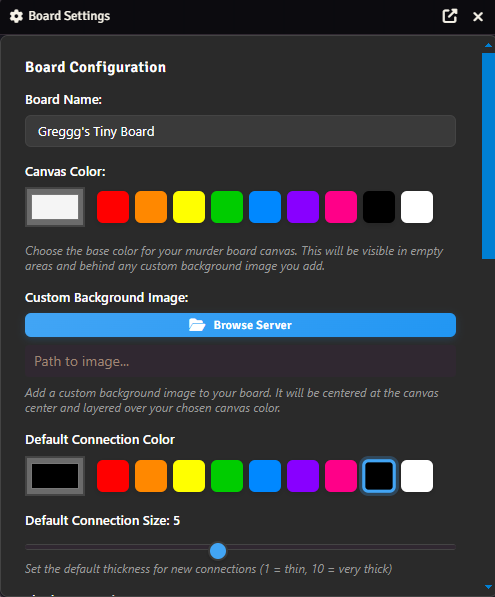 ##### In Board Settings you can: - Change the Board's Name. - Change the default canvas color. This will appear by default when there is no custom background image active and also surround the background image if one is set. - Change the background image to any image you like. It will be overlayed on top of your chosen canvas color and stretch to your chosen background scale. - Change the background scale, this will make the background image larger or smaller. - Change the default Connection color and thickness. - Set the "intensity" of the shadow on items which have shadow enabled. - Change the default font and font. This applies only to newly created items and not retroactively. - Alter player's permissions to edit/view the canvas, or allow all players to edit/view the canvas. If you would like players to be able to add images to the board you must give them proper permissions in Foundry settings. - Enable or disable "realistic" Connection strings. The term is used loosely here. - Choose to render Connections above Items. This will make connections appear as drawn above Items, rather than the default below. #### The Canvas The canvas is where all of your Items reside. It's pretty big and extends far beyond the boundaries of the MB window. Think of the Window as a camera with a viewport about the size of however big you've made your MB window in Foundry. Mechanically, it has two amazing functions to assist your and your players with building out your Boards: Pan and Zoom. ##### Pan Pan is a stupid word for "move-a-camera-around". It comes from the word panorama which comes from the word Panorama which is a big painting. Now imagine moving that camera around to view all the stuff that's currently outside the viewport. That would be panning. We're not actually doing that because technically our camera (Window) is stationary and we're moving the canvas around to change what we see. Everything is relative. Anyway, to move your canvas around, **right-click** and drag. ##### Zoom Zoom is a cool word for "Hey, lemme see that a little closer in." but also "Woah, that's too far. Let's back it up a bit." You can spin your mouse wheel to zoom in and out. The sensitivity of this can be adjusted in the MURDER BOARD section of Foundry's Configure Settings and applies globally. ### Items What's a good Murder Board without items plastered all over it? What follows are the currently available Items for use on your Boards. But first... #### Creating and Editing Items 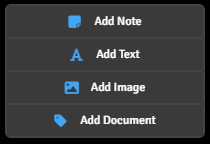Pretty much every Item is created or edited by **right-clicking** on the board. You can duplicate Items and drag certain types directly to the Board but in the vast majority of circumstances you'll initiate with a **right-click**. If you **right-click** in an empty area of the Board you'll get the Item Creation Context Menu. This lists all the Item types currently available for creation in Murder Board. If you choose one you'll likely get a very brief Initial Configuration panel or, in the case of Images, a File Picker. Once an Item has been added to the board you can edit it by right-clicking on it. You'll be greeted with an Item-appropriate menu which you can use to make everything about your new Item as you like, #### Item Types Let's take a closer look at the Items everyone is talking about.**NOTE**: Many of the Items in Murder Board share common configuration options which are explained further down.
##### Sticky Notes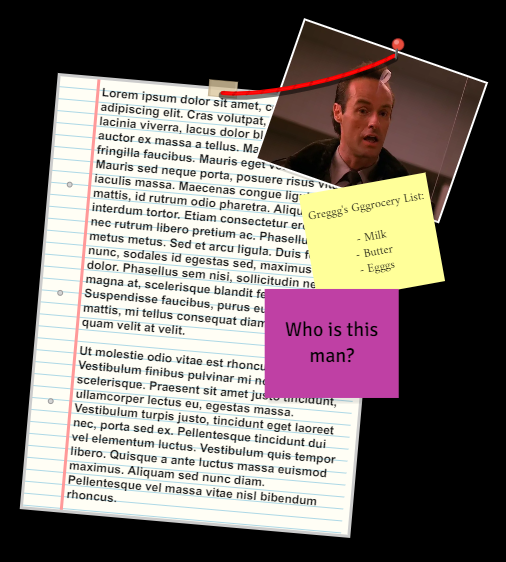 These represent 3x3 inch canary-yellow guys that we all grew up with. Nowadays they come in all sorts of colors and so do our virtual ones. They start out square but you can squish and stretch them to whatever perverted dimensions you can dream up, you dirty dog.Notes are set to Reject Connections by default. This is so they can be placed realistically on top of other items without the risk of a Connection being created.
##### Text I hope I don't have to ever write any more than this. ##### Images Use this Item type to pull you Foundry image assets to your Board. ##### Documents This was originally meant to be an easy way to show large amounts of text in a semi-realistic-looking way. A lot of times Image Items will be a higher fidelity choice but I'm leaving Documents in because they took me so damned long to create. ##### Labels Labels are just Text Items that have a parent Item that they belong to. Images and Connections can both have Labels. #### Fonts and Text Most Items will have text associated with them and Murder Board pulls font options directly from your Foundry install and your custom fonts.**REMINDER**: All Item default font settings can be configured in Board Settings.
#### Connections Technically not an Item since they cant yet be created independently, Connections are the strings or wires that get strung between Items. Any item can be connected to any other item in one of two ways: 1. Dragging one Item over another. 2. With exactly two items selected- using the Connection Hotkey, Ctrl + C. You can edit Connections by right-clicking on them to access their Context Menu.Every item can be altered to accept or reject connections as indicated by the chain-link button in the bottom left of every item's right-click context menu.
Connection Labels exist as full, editable text Items which can be repositioned, styled, and sized just as any text Item. They will move in relation to the position of their parent. Items can be set to accept or reject connections. This is to aid in layering objects on top of one another without creating a connection. In order for a connection to be established, both items must be set to Accept Connections.**REMINDER**: All default Connection settings can be configured in Board Settings.
#### Resizing and Rotating Any item on the board can be resized and rotated. Both are accessible by clicking on the item and using the red corner handles to resize the item, while the green circular icon above is used to rotate the item. You can also rotate items by clicking over an item and using CTRL + Mouse Wheel .**PROTIP**: Fine-tune rotation by adding Shift to the key combo - Ctrl + Shift + Mouse wheel. Adding jaunty angles to all of your Items is a great way to give your Board an organic look.
#### Other Item Options As mentioned previously, Items share a host of common options.[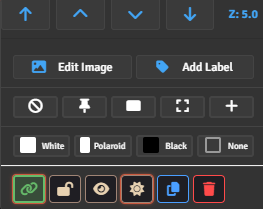](https://wiki.fuliginheart.dev/uploads/images/gallery/2026-03/5w8image.png) ##### Fasteners Some Items can be configures with a variety of fasteners to make them appear more realistically affixed to the Board. Though entirely cosmetic, these fasteners can lend quite a bit of "juice" to an otherwise boring display. ##### Layering Murder Board supports a z-index similar to Foundry's default canvas. The controls for this appear at the top of every Item's context menu, and allow you to layer items above or below other Items. Items with a higher index will appear over items with a lower index. Using the arrow buttons will allow you to quickly bring items to the front or back. ##### Hiding Every Item on the Board is able to be hidden by the GM. Hiding an Item renders it invisible to all players. This is done by clicking the Eye icon in the bottom-left of the item's edit panel. Connections to and from hidden Items are also hidden until revealed. ##### Locking Every Item on the Board can be Locked by both the GM and Players if they have permission. This is done by pressing the lock icon in the bottom-left of the Item's edit panel. This will prevent the Item from being rotated, moved, resized, etc. ##### Shadow This toggles drop-shadow on and off for each Item. #### Groups Groups are a useful function that allows you to quickly move or alter the z-index of a chosen group of items on the canvas. In order to group a set of items you must select multiple of them and right-click the item and click 'Group'. This will then allow you to move them around together or bring them to the front or back on the z-index. #### Foundry Native Element Dragging Murder Board allows you to drag many default Foundry elements right to the canvas. You may drag Actors, Items, Journals, Journal Pages, and Scenes directly to Murder Board. These all behave in specific ways according to the type. ##### Actors Image Item using the Actor's portrait and a Label using the Actor's name. ##### Items Image Item using the item's image. ##### Journal Entries A Document Item with the Journal's title as initial text. ##### Journal Text Pages A Document Item using the text of the page. ##### Journal Image Pages An Image Item using the image of the page. ##### Scenes An Image Item and using the Scene's thumbnail.Journal Page PDFs and Videos are not implemented yet.
### Keyboard Shortcuts - Ctrl+C - Create connections between selected items - Ctrl+D - Duplicate selected items - Ctrl+G - Toggle group/ungroup selected items - G - Toggle group border visualization # Changelogs # 1.7.8 - 2026.03.26 Small update to work in some excellent suggestions from Patreon Supporters. - Relaxed the constraints of culling helper that handles loading and unloading Items from the viewport. This will help prevent Items from suddenly popping out or in when zooming. - Revamped the way "Fullscreen" works. Now there are essentially two distinct modes: - Fullscreen Snap - makes the MB window as big as possible at all times without covering the right-hand buttons or panel. Dynamically resizes if expanded. - Custom - Allows user to size and position the window as they see fit. - Retooled the way label placement is calculated when resizing Items. This resolves an issue with Labels getting suddenly relocated and placed inside Items. # 1.7.1 - 2026-03-07 ### Bugfix Refactored my incredibly hacky fix for keypress event consumption. This was preventing certain keys being registered while the module was open and active. ### Whatever I also removed some old console output regarding early version migrations. # 1.7.0 - 2026.02.26 ## New Features - Module Window now remembers last size, location, pan, and zoom level. - Multiple multiple-item enhancements - Multiple Item Edit: select a bunch of stuff and change common properties all at once! - Multiple Item Rotation: Spin to win! - Multiple Item Resize: Shrink and grow everything at once! - Zoom sensitivity can now be adjusted in Module Configuration. - Image Items now have Text Labels that can be positioned, rotated, colored, etc. and move relative to their parent. - Foundry Native Items dragged to the board now get Text Labels. - Text Items now have a foreground and background color. - Connections can now look more "realistic" (on/off toggle in board settings) - Polaroid frames are back for Image Items - Some simple Fastener type variations. (click the pushpin button repeatedly to change) - Connection rejection indicators to provide better feedback. If either partner in a potential Connection is se to Reject, a visual indicator with display. ## Fixes - Connections - More accurate detection when right-clicking a Connection to modify. - Should now reliably connect every time when dragging to connect. - Resizing is more reliable now as I have transitioned away from default Item sizes in favor of a more freeform method. # 1.6.0 - 2026.01.12 ### Major Features - GM can now hide and reveal any Item on the board. Connections to and from hidden Items are also hidden until revealed. - GMs and Players can now Lock Items, preventing them from being rotated, moved, resized, etc.. - Connections can now be shown above or below Items via a per-board setting. ## Fixes - Prevented delete events from propagating to Foundry scenes from Murder Board. # 1.5.0 - 2026.01.06 ### Major Features [](https://github.com/fuliginheart/module-documentation/wiki/Murder-Board-Changelog#major-features-1) - **Free Resize for All Items:** Drag corner handles to resize Notes, Text, Images, and Documents - Real-time visual feedback during resize - Persists across sessions - **Visual Rotation Handle:** Green circular icon above selected item - Drag to rotate freely, hold Shift to snap to 15° increments - Complements existing CTRL+SHIFT+wheel rotation - **Enhanced Board Settings Panel:** - Default Font selection (applies to new items) - Default Font Color picker - Default Connection Color picker - Default Connection Size slider - Per-board permission controls (view/edit restrictions per player) - **Connection Labels and now Full Text Items:** - Can be fully repositioned, styled, and sized just as any text item. ### UI/UX Improvements [](https://github.com/fuliginheart/module-documentation/wiki/Murder-Board-Changelog#uiux-improvements) - Right-click and drag to pan the Murder board. This is consistent with Foundry scene defaults. - Replaced custom inline editing with ApplicationV2 dialog system for consistent form styling - Unified creation flow for all item types (Documents now show dialog before creation) - Font dropdown in context menus now full-width for better visibility - Connection toggle button redesigned as icon-only, repositioned to bottom-left - Board Settings panel reorganized: Delete button left-aligned, Save/Cancel right-aligned - Import/Export buttons moved to main toolbar (between Settings and View Controls) - Edit button in context menu repositioned to the top after z-index controls ## Import/Export [](https://github.com/fuliginheart/module-documentation/wiki/Murder-Board-Changelog#importexport) - Import always creates a new board instead of overwriting current board - Imported boards automatically named with "- Imported YYYY-MM-DD" suffix - Board selector dropdown properly updates after board deletion - Fixed board data preservation during import (items and connections now properly imported) ### Bug Fixes [](https://github.com/fuliginheart/module-documentation/wiki/Murder-Board-Changelog#bug-fixes) - Fixed Text items to edit displayed content (data.text) instead of internal label - Added backwards compatibility for Document items missing data.text property - Fixed connection labels to properly populate text in edit forms - Board Settings dialog now closes properly after board deletion - Board selector updates correctly after deletions - Replaced deprecated Dialog.confirm with ApplicationV2's DialogV2.confirm - Fixed EEXIST error handling for directory creation during import ### Performance Optimizations [](https://github.com/fuliginheart/module-documentation/wiki/Murder-Board-Changelog#performance-optimizations) - Applied requestAnimationFrame throttling to all mouse operations (rotation, panning, dragging, resizing, box selection, hover) - Ensures smooth 60fps maximum instead of hundreds of redraws per second - Added viewport culling for connections (skip off-screen connections) - Optimized hit detection to use cached board data - Removed intermediate saves during drag operations (only save on mouse up) - Fixed socket echo loops that caused repeated broadcasts ### Technical [](https://github.com/fuliginheart/module-documentation/wiki/Murder-Board-Changelog#technical) - Connection labels default to `acceptsConnections: false` - Improved synchronization and socket message handling - Better dimension calculation for all item types # 1.3.0 ## Changed Stuff **IMPORTANT!** [](https://github.com/fuliginheart/module-documentation/wiki/Murder-Board-Changelog#changed-stuff-important) - Moved board storage from Scenes to World. This allows you to see all of your boards regardless of which scene you're on. An automatic migration will happen the first time you load a world with this version installed. You can see the details and results in the dev console (F12). ### New Stuff [](https://github.com/fuliginheart/module-documentation/wiki/Murder-Board-Changelog#new-stuff) - Groups are now in Murder Board! Select a bunch of stuff and use the context menu option to Group them. Or use one of the new shortcuts (see below). - Font selection dropdown added to all relevant Item context menus. #### New Keyboard Shortcuts: [](https://github.com/fuliginheart/module-documentation/wiki/Murder-Board-Changelog#new-keyboard-shortcuts) - Ctrl+C - Create connections between selected items - Ctrl+D - Duplicate selected items - Ctrl+G - Toggle group/ungroup selected items - G - Toggle group border visualization ### Technical Improvements [](https://github.com/fuliginheart/module-documentation/wiki/Murder-Board-Changelog#technical-improvements) - Fixed (hopefully) canvas artifact issue on certain setups. - Canvas renderer enhancements for group border rendering - Enhanced error handling and logging